Tutorial: Using the PSR API
In this tutorial, we will walk through how to use the PSR API interactive documentation to construct a query using a GraphQL client.
We will write a GraphQL query that will get the EAN and current stock levels of all product simples that we currently sell in the UK for a specified Merchant ID.
GraphQL Clients
We recommend using GraphQL freeware clients during development, such as:
- Insomnia: This is our recommendation.
- Postman API Client: Postman v7.2 and later have GraphQL support.
These clients allow you to easily send queries directly to the API, which can be useful for testing or for manually retrieving data.
They can also help you understand how to write GraphQL queries for the zDirect API, so you can programmatically construct requests with UIs or in application code. This article explains how to create and execute GraphQL queries within Insomnia.
Instructions in this documentation are based on Insomnia version 7.1.0 for Windows.
Prerequisites
Before using this tutorial:
- Read through the page Product Status Report API, if you have not already done so.
- Install a GraphQL client. In this documentation, examples are based on Insomnia.
- Be sure you understand how to get access tokens for the zDirect APIs explained in our Authentication guide.
Authorization
- Use the zDirect Authentication API to generate an access token as described in Authentication.
- In the Auth tab on the Insomnia client, select "Bearer Token"
- Enter your access token in the TOKEN field.
Getting Started
As an introduction, we will walk through sending a basic request to the PSR API. Once you have done so, you can use Insomnia to generate an interactive reference for the API.
Setting Up a Request
- In the upper-left, click on the plus icon and select New Request.
- Enter a name such as "PSR Sample Query" in the dialog box. Select "POST" for the request type, and "GraphQL Query" for the body type.
- Click "Create".
- In the top bar, enter the target URL: https://api.merchants.zalando.com/graphql
- Add authorization information.
- Use the zDirect Authentication API to generate an access token as described in Authentication.
- In the Auth pull-down tab on the Insomnia client, select "Bearer Token"
- Enter the access token in the TOKEN field.
- Click the Header tab and verify that Content-Type is set to "application/json".
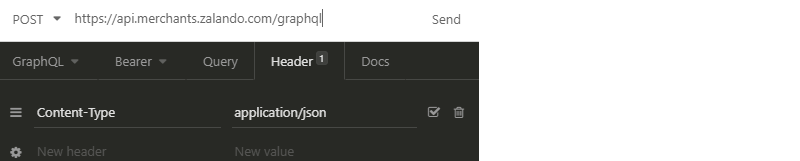
This should be the base configuration for an authenticated request targeting the PSR API.
Creating a Request
Select the GraphQL tab and copy-and-paste this example JSON query into the window as our starting point:
{
  psr {
    product_models(
      input:
      { merchant_ids: ["YOUR_MERCHANT_ID"]
      , season_codes: []
      , brand_codes: []
      , country_codes: []
      , limit: 10
      }) {
      items {
        product_configs {
          product_simples {
            ean
          }
        }
      }
    }
  }
}
Note
Be sure to enter one or more actual Merchant IDs in the merchant_ids field.
In this query, the request parameters are specified in the product_models field, and the data we want back is specified in the items field.
In product_models.input, we will specify that this search will return data for products that are:
- sold by a specific Merchant ID,
- currently live, and
- available for sale in the UK.
In the items field, we will specify that we want to get:
- the EAN, and
- the amount of available stock.
Click the Send button to the right of the URL. The PSR API will return a JSON reply.
Open the Interactive Documentation
After you sent a valid and authenticated query to the PSR API at least once, as mentioned above, you are able to launch the interactive documentation.
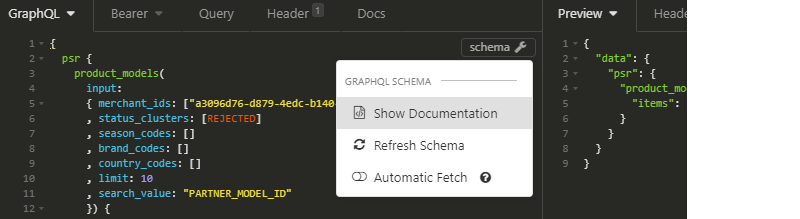
In the upper-right of the window where you entered your query, click the Schema button, and select Refresh Schema. The Show Documentation option should now be available to click and it will launch the interactive documentation that describes the various query options for the PSR API.
Specify Filters
The landing page of the documentation looks like this:
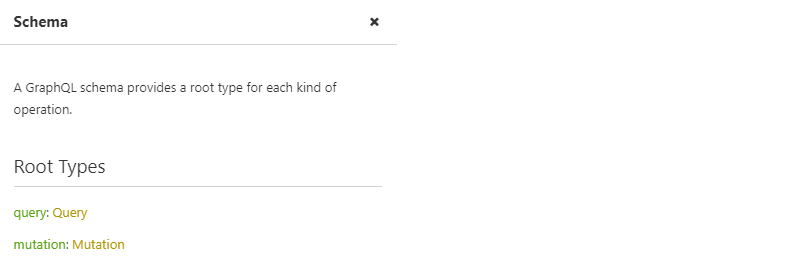
We can see in the Root Types enumeration that there are two available types of request:
- Query
- Mutation
Queries return a JSON, and mutations are only for internal usage.
Let's choose Query for our root type. Click on Root Types > query > Query to open the Fields page.
In the Fields page, we can see that all queries pertain to Product Status Report, so we have only one option. Click on Fields > psr > PsrQuery! to continue.
Now we see available fields such as product_models, countries, brands, and so forth.
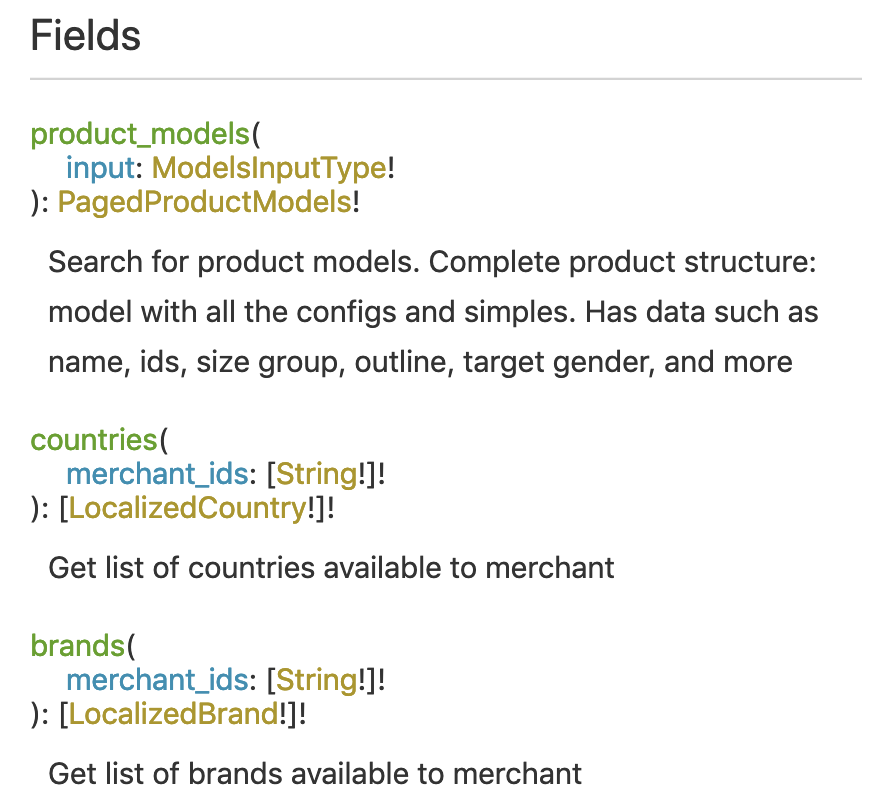
We want to specify that our query should get products only for sale in the UK and with a status of Live. Both of these values are specified at the product model level, so select product_models.ModelsInputType! to view the input options for the product model tier.
Now we see the following fields:
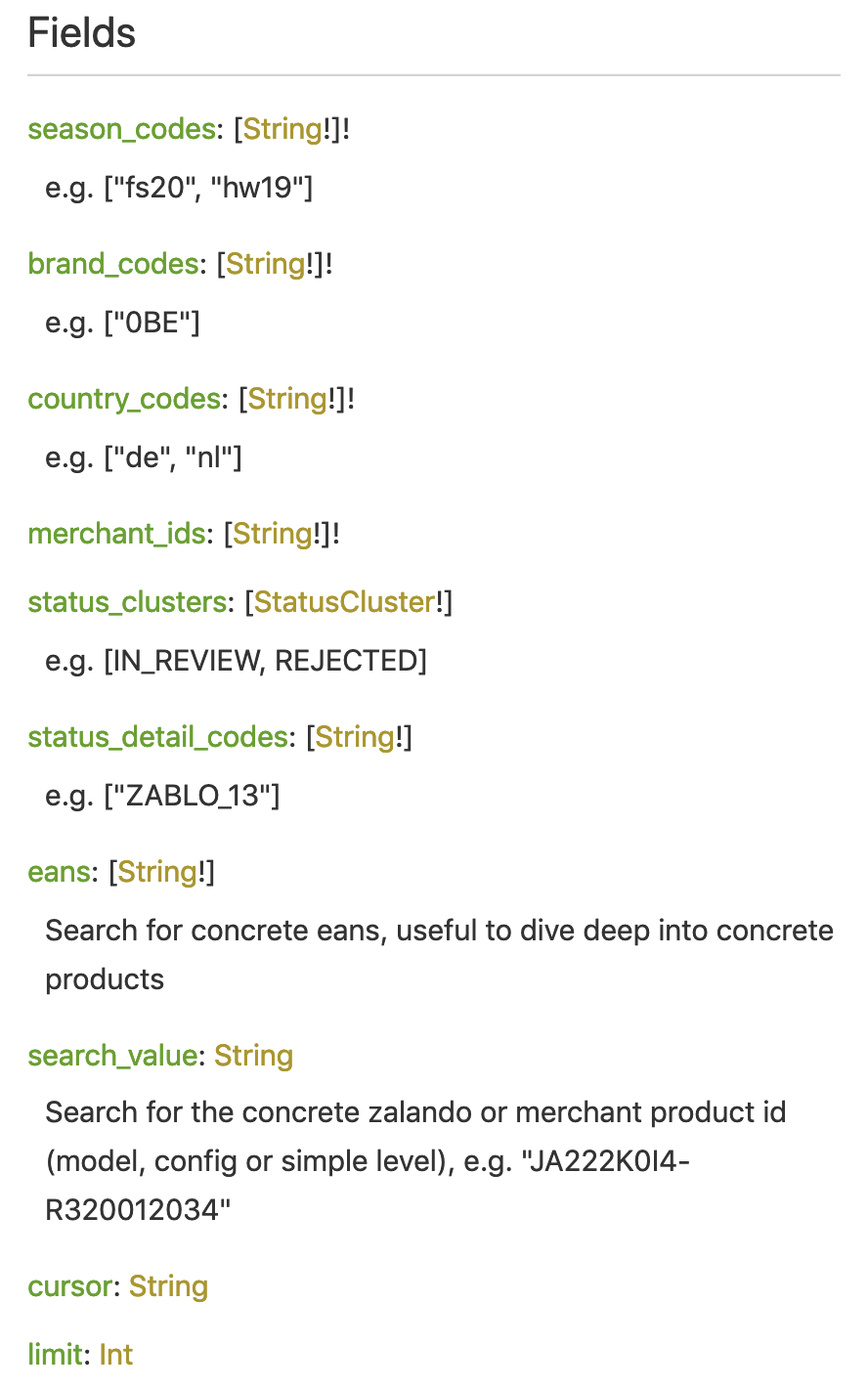
Our fields of interest here are country_codes, status_clusters, and merchant_ids.
Country Codes
Looking at country_codes, we find this field takes a two-letter value for country. To get product data for products for sale in the UK, enter the following value:
, country_codes: ["uk"]
Status Clusters
Looking at status_clusters, we see that we enter an all-caps status value as an argument. To get results only for products that are live, enter the following value:
, status_clusters: [LIVE]
Merchant ID
The entry for merchant_ids tells us to specify the ID with a string. Enter one or more Merchant ID in the following field:
{ merchant_ids: ["YOUR_MERCHANT_ID"]
Insomnia Auto-Complete
One extremely useful feature that Insomnia provides is auto-complete when you are authoring GraphQL queries.
Let's go back to the status_clusters example above. Say you were not sure what values are legal for that attribute. Instead of entering a value, enter Ctrl + space, and you will see the following pop-up:
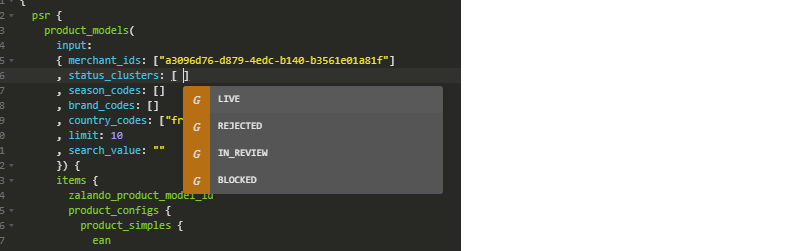
For any key with pre-defined values, Insomnia will provide you with available options in this way.
Specify Return Data
Now we will specify that we want to get the EAN and stock for each of the products that meets the filter criteria we previously set.
Stock levels and EAN are set per product simple, so this data must be specified in the product_simples field. For more information on these values, click on product_simples > Simple!.
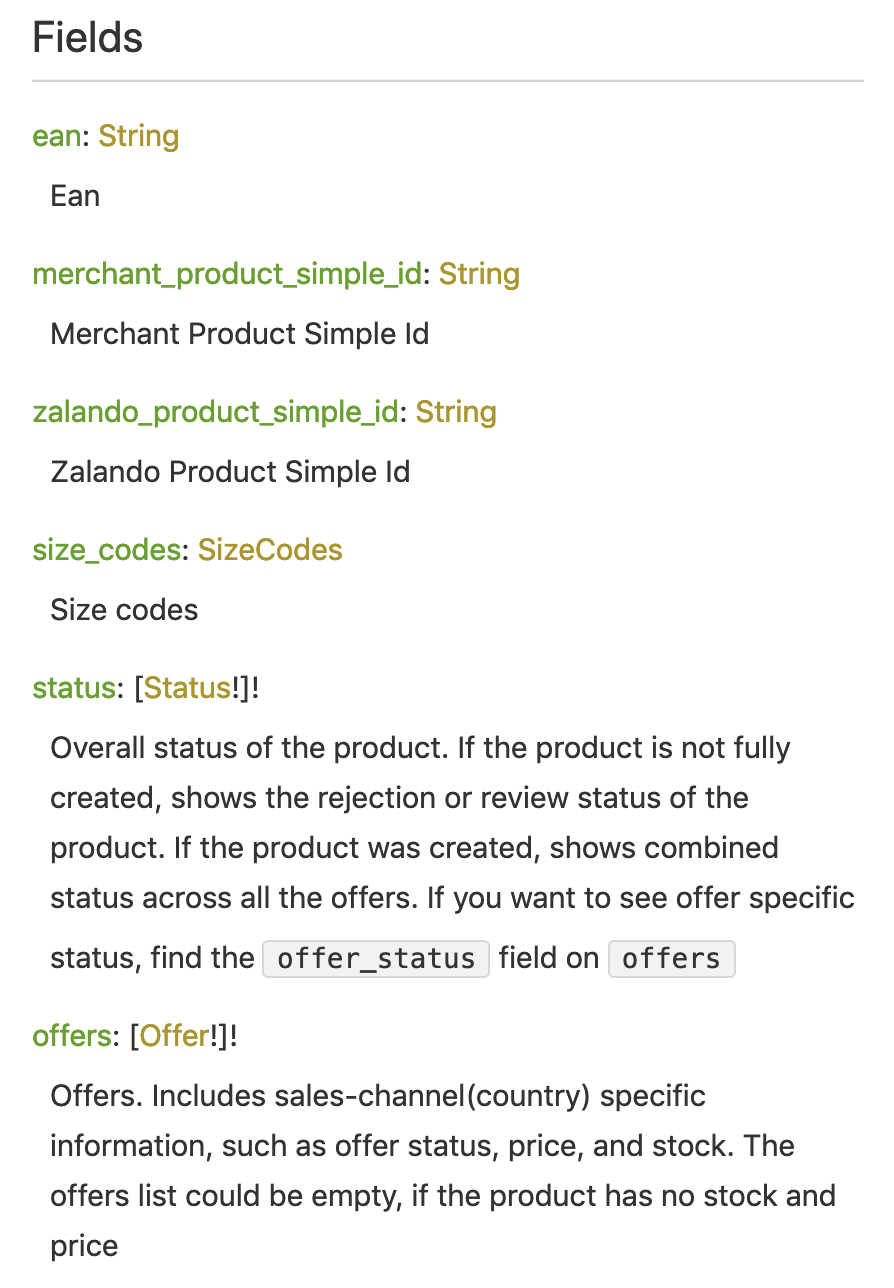
EAN
Looking at ean, we see that the value is returned as a string. Nothing additional is needed than what we already have in our sample:
      items {
        product_configs {
          product_simples {
            ean
Offers
Available stock and price are defined by offers, so click the field Offer! to see what options are available:
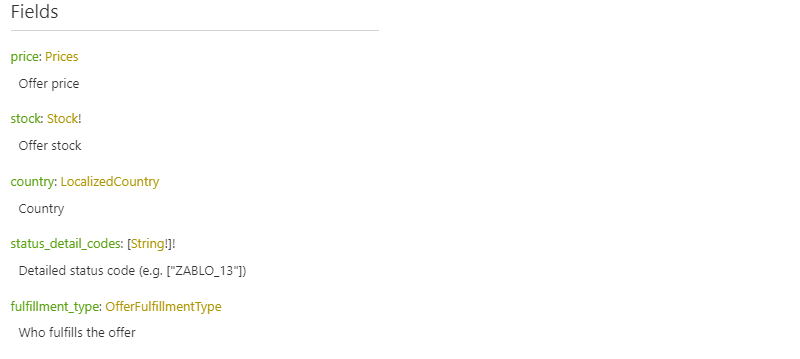
We want to specify stock, so click on the Stock! field:

To get current stock levels back per EAN, we must specify that we want the amount as in this example:
      items {
        product_configs {
          product_simples {
            ean
            offers {
              stock { amount }
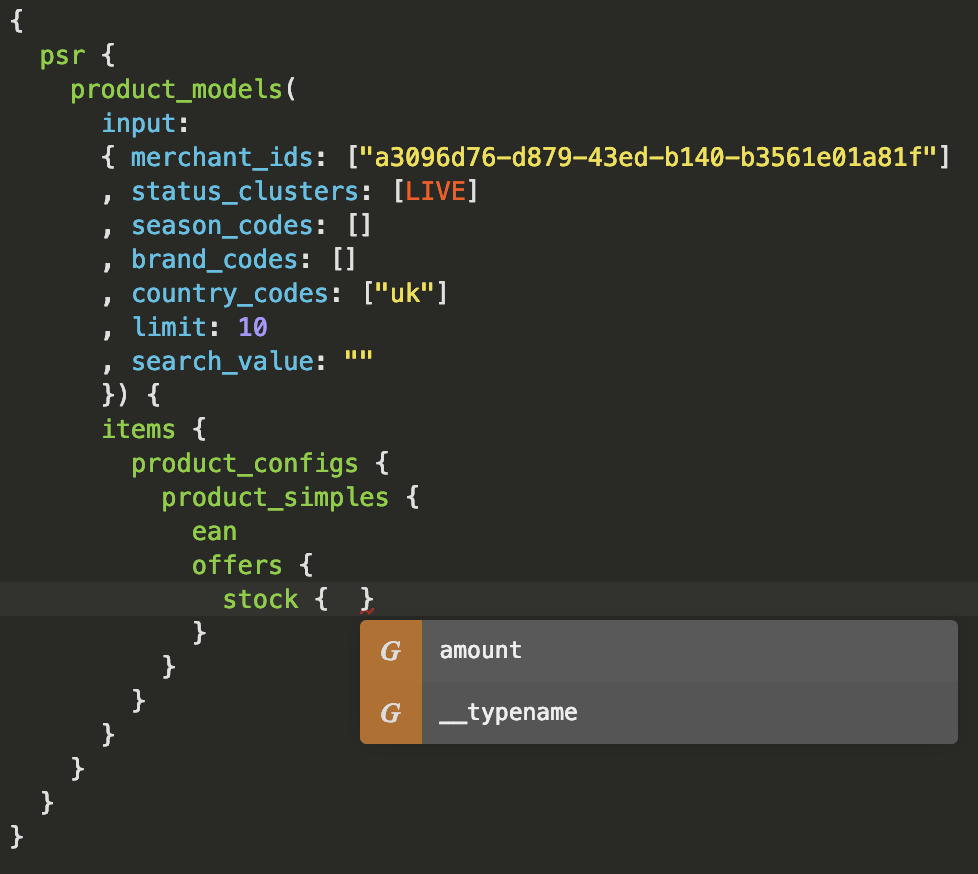
Auto-Complete Again
As with status_clusters, we can use Insomnia auto-complete to display legal values for stock attributes by entering Ctrl + space in the input field:
Complete Query
We now have everything we need for our complete query, which will return all available stock per EAN for items currently sold by a specified Merchant ID in the UK:
{
  psr {
    product_models(
      input:
      { merchant_ids: ["YOUR_MERCHANT_ID"]
      , status_clusters: [LIVE]
      , season_codes: []
      , brand_codes: []
      , country_codes: ["uk"]
      , limit: 10
      }) {
      items {
        product_configs {
          product_simples {
            ean
            offers {
              stock { amount }
            }
          }
        }
      }
    }
  }
}
Note that in this example the limit field is set to its default value of 10. This will limit the number of returned results to the first 10 product_models in the system.
Go ahead and try running this query by clicking Send. Be sure that you have a valid access token entered in Bearer > TOKEN.
We can see in the timeline tab on the right hand side of Insomnia what has really happened. The payload of the HTTP request will look like this:
{"query":"{\n psr {\n product_models(\n input:\n { merchant_ids: [\"YOUR_MERCHANT_ID\"]\n , status_clusters: [LIVE]\n , season_codes: []\n , brand_codes: []\n , country_codes: [\"uk\"]\n , limit: 10\n }) {\n items {\n product_configs {\n product_simples {\n ean\n offers {\n stock { amount }\n }\n }\n }\n }\n }\n }\n}\n\n"}
If you are not using a GraphQL client library, such as when sending commands from a simple REST client or curl, then you must encode the query as a JSON string as shown in the example above .